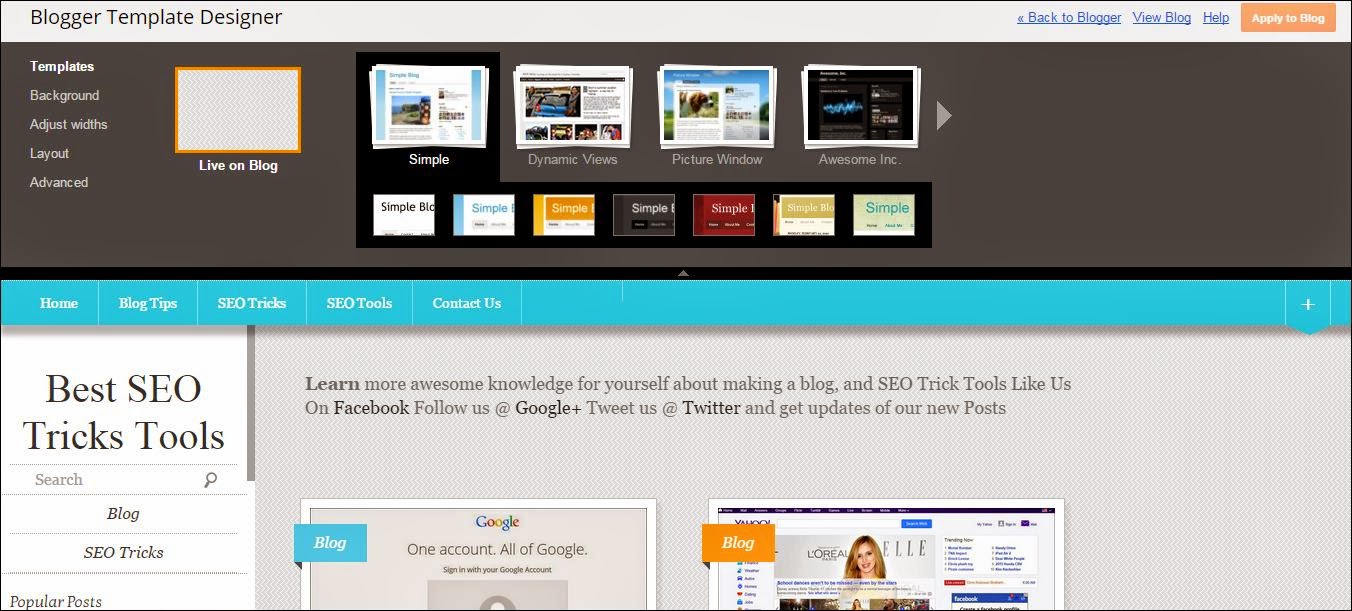
Best SEO Tricks Tools

Learn more awesome knowledge for yourself about making a blog, and SEO Trick Tools Like Us On Facebook Follow us @ Google+ Tweet us @ Twitter and get updates of our new Posts

HowTo Make A Blog On Blogger.com


Ø  Hi this is Jack Brian teach you guys a good stuff about an SEO and research keywords, Also how to make a blog on any platform Blogger, Wordpress Web.com, Weebly.com. Now our article is about how to make a blog on blogger.com. We use Pictures for your patience to get knowledge best, easy and fast.

Ø   Following Are The Steps How To Make Blog On Blogger.com

How To Make A Blog On Blogger.com - Google Gmail Account Sign In

Step 1 Make A Blog On Blogger.com How?

Ø  First explore Blogger.com on your web-browser
Ø  Before going to the Blogger.com, it asks you to sign in to Google Account
Ø  Google Account Sign in appear on screen
Ø  You must have a Google Gmail Account to make a blog on blogger.com
Ø  If you have an Google Gmail Account, sign in with your Google Gmail Account
Ø  If not, create a new Google Gmail Account
Ø  Click on Create An Account
Ø  Or see the article
Ø   When you sign in with Your Google Gmail Account
Ø  A window appears on your screen, full details of how to make a blog on blogger.com
Ø  A button on right upper corner Get Started
Ø  Click on Get Started
Ø    Blogger features are now available to you

How To Make A Blog On Blogger.com - Google Gmail Account Sign In


How To Make A Blog On Blogger.com - Creat New Blog

Step 2 Create New Blog How?

Ø  Click on Create New Blog
Ø  Create New Blog will pop-up
Ø  Enter Title for your blog
Ø  And enter unique name of your blog
Ø  Select a responsive theme what that is justified your blog
Ø  Click on create, now your blog is ready

How To Make A Blog On Blogger.com - Creat New Blog


Step 3 Starts Posting On Your Blog How? 


Ø  Click on Start Blogging, underneath that blog you create it
Ø  This link moves you to create new post
Ø  Give title to your post
Ø  And then write the post in the body
Ø  When finish your post
Ø  Click on Preview, it show you a preview of this post if you want to see this post
Ø  Click on the Publish Button, now you published your post

Ø  Click on View Blog, if you want to see your blog Posts

How To Make A Blog On Blogger.com - Creat New Blog - Start Posting

How To Make A Blog On Blogger.com - Create New Blog - Start Posting - Full Overview - With Pictures


  Step 4 Overview Of Your Blog?
Ø  You can see your history by just clicking on left hand side overview button

How To Make A Blog On Blogger.com - Create New Blog - Start Posting - Full Overview - With Pictures

Step 5 Posts History?

Ø  Click on Post Button on the left hand side

Ø  You can see your Posts history

How To Make A Blog On Blogger.com - Create New Blog - Start Posting - Full Overview - With Pictures

Step 6 Create Pages In blog - How? 

Ø  Click on Pages Button on the left hand side
Ø  You can create Page by clicking on New Page
Ø  You can edit, add, delete the pages

 How To Make A Blog On Blogger.com - Create New Blog - Start Posting - Full Overview - With Pictures

Step 7 Customize Layout How? 

 Ø  Click on Layout Button on the left hand side
Ø  You can Add Gadget to your layout by clicking Add Gadget
Ø  You can move Gadgets by drag-n-drop
Ø  Then save the arrangements

 How To Make A Blog On Blogger.com - Create New Blog - Start Posting - Full Overview - With Pictures

Step 8 Customize Template How? 

Ø  Click on Template Button on the left hand side
Ø  You can Customize your Template by clicking on Customize
Ø  You can adjust widths, background, colors of your template

How To Make A Blog On Blogger.com - Create New Blog - Start Posting - Full Overview - With Pictures

How To Make A Blog On Blogger.com - Create New Blog - Start Posting - Full Overview - With Pictures
Step 9 Customize Template By HTML How? 
Ø  Click on Template Button on the left hand side
Ø  You can Customize your Template by clicking on Edit HTML
Ø  You can create your own code or from other place, Paste it

How To Make A Blog On Blogger.com - Create New Blog - Start Posting - Full Overview - With Pictures

Step 10 Template Settings How? 

Ø  Click on Settings Button on the left hand side
Ø  You can Customize your Settings
Ø  You can edit settings for Basic level, for Post and Comments, Language, Search Preferences, And for Others

How To Make A Blog On Blogger.com - Create New Blog - Start Posting - Full Overview - With Pictures

How To Create Yahoo (Ymail) Account


  • You are thinking to create a Yahoo (Ymail) Account, by which you can Send emails to your friends, family members, or others peoples you want. And receive emails from your friends, family members or from other peoples. Nowadays Email Accounts (like Gmail, Ymail, Live, Hotmail) is used and very popular due to the advancement in technology. Everyone has access to the internet. Yahoo Account is used everywhere, when you start or create your Facebook account or you can use in other websites or blogs to which you can to access-in. Yahoo Account or Yahoo mail sign in, you can connect to Yahoo finance, Watch latest news or others.

How To Create Yahoo (Ymail) Account


     Ø   Follow the following steps to Make A Yahoo (Ymail) Account: 

How To Create Yahoo (Ymail) Account

Step 1 Go To Your Browser Explore Yahoo Sign Up Page

  • Go To Your Browser And Explore Yahoo Home Page.
  • Type Yahoo Account (Ymail) Sign up / Yahoo Account Sign in, Click on it, it will open up Yahoo (Ymail) Sign up window.

How To Create Yahoo (Ymail) Account


Step 2 When Yahoo (Ymail) Sign Up Window Open? 

v Click On Yahoo Account Sign Up Button
v Write your First and Last Name
v Choose user name, which uniquely identifies you over the internet.
v Create a Password, use unique and strong password ( it has be an ‘_’ or characters, or numbers or special characters
v Confirm your Password
v Enter your Mobile Phone Number, which is used for Yahoo (Ymail) Account Recovery, when lost your yahoo account, or any others.
v Choose your Birthday
v Choose The Gender, Male or Female
v Enter your phone number for recovery (optional)
v Also enter about your Relationship
v I agree to the Yahoo Terms and Privacy 

Ø  Click On Create Account

How To Create Yahoo (Ymail) Account


           Step 3 Use Yahoo Account How?

v When your yahoo account window pop-up
v Yahoo Account ask you your Yahoo Account is hidden
v You want to visible your Yahoo Account
v Click on Visible, Your Yahoo Account is visible now
v Upload you profile picture
v Set your Yahoo Privacy Settings
v Want to see your Yahoo Mail Box
v Click on Mail on the right upper corner
v It will pop-up you yahoo account mail box
v You can see your Yahoo inbox
v Or you want send a message / email to someone

v Click on Compose and write your email, send it to your friends or others


      How To Make a Google (Gmail) Account

  You are just thinking to make a Google (Gmail) Account, by which you can Send emails to your friends, family members, or others peoples you want. And receive emails from your friends, family members or from other peoples. Nowadays Email Account is used very popular due the advancement of technology everyone has access to the Internet. Email Account is used everywhere, when you start or create your Facebook account Or You just use in other website blogs to access in. When you get started Google website Blogger you must have a Google (Gmail) Account or On the WordPress or any other.


  Ø   Follow the following steps to Make A Google (Gmail) Account: 


Go To Your Browser And Explore Google Home Page

Step 1 Go To Your Browser And Explore Google Home Page

  • Go To Your Browser And Explore Google Home Page.
  • Type Google (Gmail) Sign up, Click on it, it will open up Google (Gmail) Sign up window.

When Google (Gmail) Sign Up Window Open

Step 2 When Google (Gmail) Sign Up Window Open?


v Write your First and Last Name
v Choose your unique user name, which uniquely identifies you over the net.
v Create a Password, use unique and strong password ( it has be an ‘_’ or characters, or numbers or special characters
v Confirm your Password
v Choose your Birthday

v Choose The Gender, Male or Female
v Enter your Mobile Phone Number, which is used for Google (Gmail) Account Recovery, when lost your account, or any Google account login problems, Gmail down.
v Your current email address (Any ), which is also used for Google (Gmail) Account Recovery, when lost your account, or any Google account login problems, or Gmail down.
v Prove you are not a robot (checks whether you are human or alien)
v Enter the given captcha
v Enter  your location
v And fill the check box, I agree to the Google Terms Of Service and Privacy Policy

Ø  Go to the Next Step

Step 3 Verify Your Phone Number?


v Select one what you want
ü  Voice call
ü  Text Message

v  Enter the submit button
v  Google will send you a code to your phone number inn a moment
v Fill it in the text field and enter

Ø  Go To Next Step

  
Connect With Google+ or Not?


Step 4 Connect With Google+ or Not? 

v After verifying your phone number
v  Google asks that you want to create your public Google+ profile
v When you want to create:
v Just click on Create Your Profile
v When not just click on No Thanks
v  Also upload a picture for your profile
v A window will pop-up that welcomes you
v Click on Get Started
v Now you can go to any Google Application

 Use Google Gmail Account How?


Step 5 Use Google Gmail Account How?

v Now you can go to any Google Application
v Click on Gmail placed upper right corner
v Your Gmail is now loading, when it loads
v Google Gmail Account Site give you tour of an Gmail Account
v You can see your Gmail Inbox, sent mails, starred mails, draft and Others
v You can Compose (write) your email
v You can text, call to your friends, family with Hangout

      
Use Google + How?

Step 6 Use Google + How? 

v Click on +Your name on upper right corner
v Your Google+ Account is pop-up
v When Google+ Account pop-up
v Google+ Account asks you to add friends, you want to add friends follow on peoples you know or not simply click on continue
v Google+ Account give a tour of your Google+ Account
v And then you can see your created Google+ Account
v You can edit your profile and settings
v Or you make post, upload photos, videos others

v And make friends on your Google+ Account

Uses Other Google Apps How?

Step 7 Uses Other Google Apps How? 

v Use other Google Applications in your Google+ Account
v Like Google Gmail
v Google Play
v Google News
v Google Drive
v Google Docs
v Others


 Also See The Following Article: 
  How To Make Yahoo (Ymail) Account